As an IT Engineer, I think very logically—so you’d think staying organized would come naturally.
But for years, it didn’t. I tried everything: sticky notes, Google Keep, Trello, OneNote… and nothing stuck. None of it matched how my brain actually works.
Then I discovered something unexpected—and it changed everything.
I’d been hearing the buzz about Notion and finally gave it a try. My first impression? Honestly… meh.
It felt like just another note-taking app. But then I stumbled into its databases and relations features—and everything clicked.
Notion wasn’t the wrong tool. I was just using it the wrong way.
Instead of boxing me into someone else’s structure, it let me build my own, based on how I naturally organize information. Better yet, I could connect different types of information—the kind you’d normally keep in separate systems—into one interconnected network. Like neural pathways, where one thought leads to another: a meeting note connects to a person, which links to a project, which ties to a task, which inspires a blog post… and so on.
And now I have a system that works with my brain, not against it.
Let me show you how to build the same thing—step-by-step.
Step 1: Map What You Actually Need
Before you touch Notion, take 5 minutes to reflect:
- What kind of information do you manage every day?
- What’s falling through the cracks—tasks, meetings, documents?
- How are these things connected?
For me, the big buckets were:
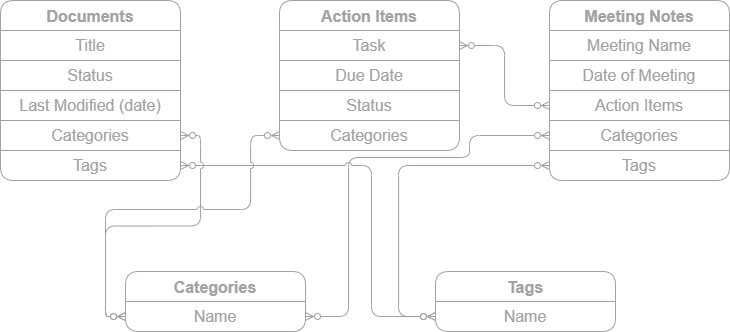
- Action Items: Personal and work tasks, personal and work categories.
- Meeting Notes: Action items, categories, tags, and notes from the meeting (note: I’ve recently added an address book database as well and connected it via a participants column in my meeting notes).
- Documents: Technical write-ups, LinkedIn drafts, and reference materials by title, personal and work categories, and tags.
- Categories: High-level definitions (e.g.,
"personal","work","information","hobby"). - Tags: Technologies, projects, or other tags I can use to filter specific ideas.
You could sketch a diagram showing how these elements connect (see below my entity-relationship-style diagram showing zero-or-many relationships between tables), though honestly, I didn’t do this before starting—I just started building. If you’re more visual, this is a great tool to organize your thoughts, and you can always add to or refine it over time.
Step 2: Set Up a Home Base
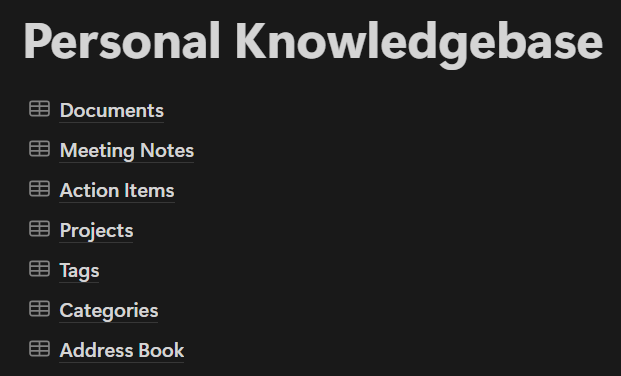
Create a top-level page in Notion. I call mine Personal Knowledgebase, but name yours whatever fits. This will be the hub that ties everything together.
Step 3: Create Databases (Not Just Pages)
Here’s where it gets powerful. Instead of making static sub-pages, create full-page databases for each major area.
Benefits of using databases:
- Filter, sort, and customize views
- Link related items together dynamically
- In your Knowledgebase page, type
/Database - Full page - Name it Documents
- Click + New Documents database
- Repeat for:
- Action Items
- Meeting Notes
- Categories
- Tags
Now you’ve got the foundational building blocks.
Step 4: Link It All Together
This is where the magic happens: relations.
You can connect databases so data flows across them. That means:
- Action items can link directly to the meeting they came from
- Documents can be tagged by topic, technology, or project
- Tasks show full context—no more wondering why you added them
Example: Connect Meeting Notes to Action Items
- Open the Meeting Notes database
- Click + Add property
- Choose the Relation type
- Link it to your Action Items database (Tip: Keep it a one-way relation so that action items cannot create meeting notes)
Now, when you log a meeting, you can add tasks directly—and they’ll show up in your task list, already connected to the meeting context.
Step 5: Customize Your Views
Databases in Notion let you view the same underlying data in multiple ways. I use:
- Boards (Kanban) for action items and documents
- Tables for meeting notes
- Lists for categories and tags
This keeps everything clean, searchable, and focused. Once inside the documents, meeting notes, or action items databases, I can use categories or tags to filter for what I want to look at specifically.
Today, I have a system that mirrors how I think: structured, interconnected, and adaptable.
It’s not just organization—it’s useful organization. It’s logical. I can find what I need quickly and intuitively without stress. Everything is interconnected, and knowledge no longer lives in silos.
If you’re drowning in disconnected tools—or your current system just doesn’t fit—build a system that thinks like you do.

Jaron Davis
Unified Communications Architect specializing in enterprise Zoom, Microsoft Teams, Cisco UC modernization, SIP/VoIP infrastructure, and systems architecture.